Overriding an attached policy template
The override option lets you edit an Attached policy template for a single endpoint. In the Overridden template, you can add more policies, replace an existing policy with another, or remove a policy.
When an override is useful
If two endpoints share an Attached policy template and one endpoint has slightly different requirements, you can choose the Override option instead of modifying the original template definition. The override uses the same policy template definition, and you customize it for the selected endpoint without affecting the original template definition.
For example, suppose an endpoint uses a policy template that has an IP Blocking policy in pre-processing. A second endpoint needs the same IP Blocking policy and also needs OAuth2 JWT Authentication policy. You can override the template for the second endpoint and add the OAuth2 JWT Authentication policy in pre-processing. The first endpoint continues to use the original policy template definition, while the second endpoint uses the Overridden policy template configuration.
Procedure
-
On the Endpoint Policies page (refer to Managing attached policy templates for navigation), click the Actions menu on the Attached policy card you want to override.
-
Click Override. To confirm the action, choose Override again. The policy template status changes from Attached to Overridden.
-
In the Overridden policy template, modify the template as required. In the Pre-Processing or Post-Processing panels:
-
To add a policy, click Add Policy.
-
To edit the field values for a policy, update them on the individual policy card.
-
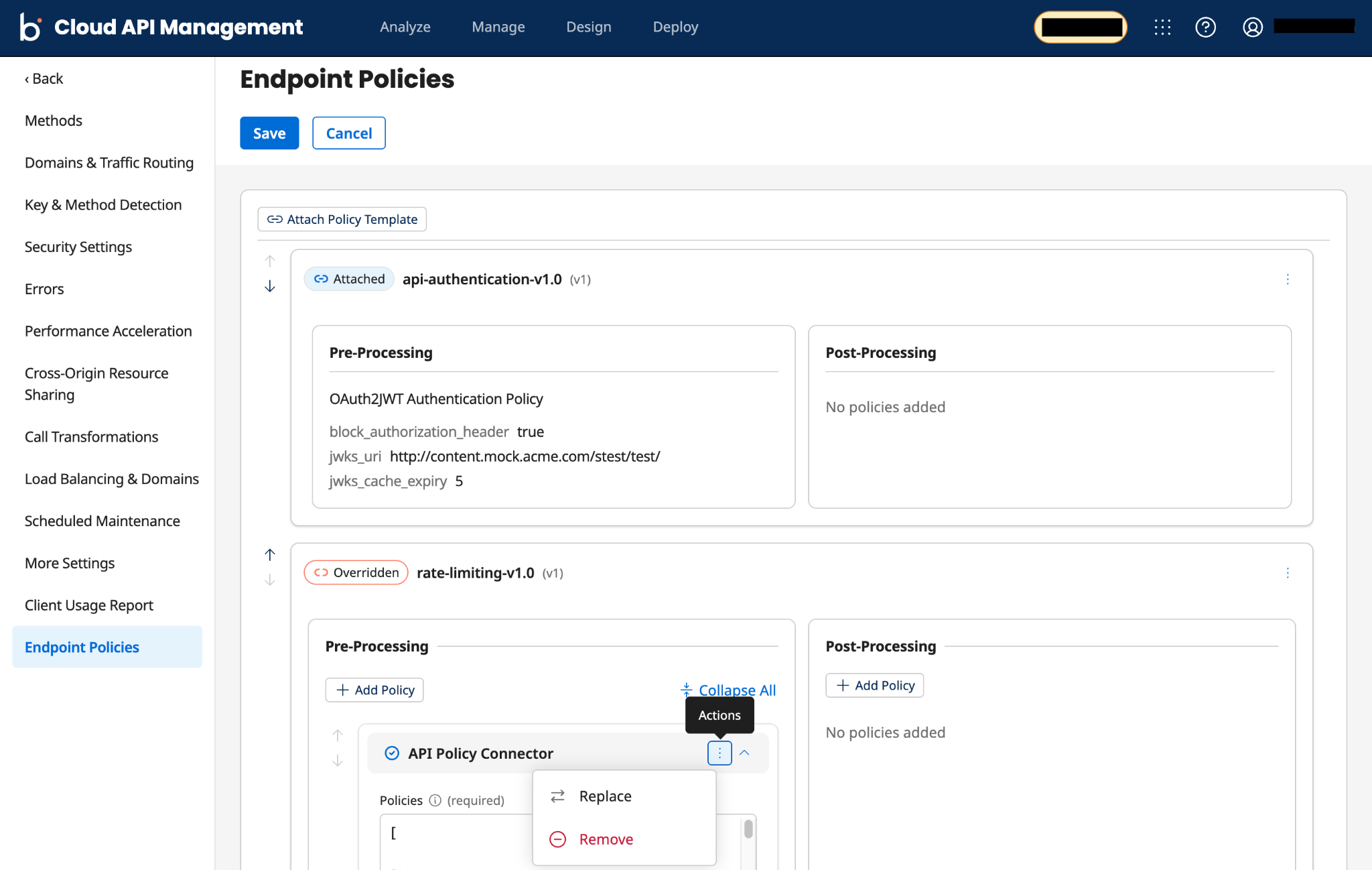
To replace or remove an existing policy, click the Actions menu (three-dot icon) on the individual policy card.
- To replace a policy with another policy, click the Actions menu in the selected policy card and choose Replace.
- To remove a policy, click the Actions menu in the selected policy card and choose Remove.
noteWhen you replace or remove a chaining policy, you must confirm the action by selecting Replace or Remove again. For any other policy, you select Replace or Remove only once.
-
-
Click Save.
If you save the Overridden template without modifying anything in the Pre-Processing or Post-Processing panels, the Overridden template changes back to Attached. To ensure your Overridden template reflects your customized values, modify it as required, and then click Save.
